
Appearance
Location Configuration
Branches are the business locations where the user is allowed to make transactions from.
Location Restriction
When you have multiple locations for your business, you can limit users access to specific business locations. This is useful when you have a user who only needs access to a particular business location.
To set location restrictions for a user,
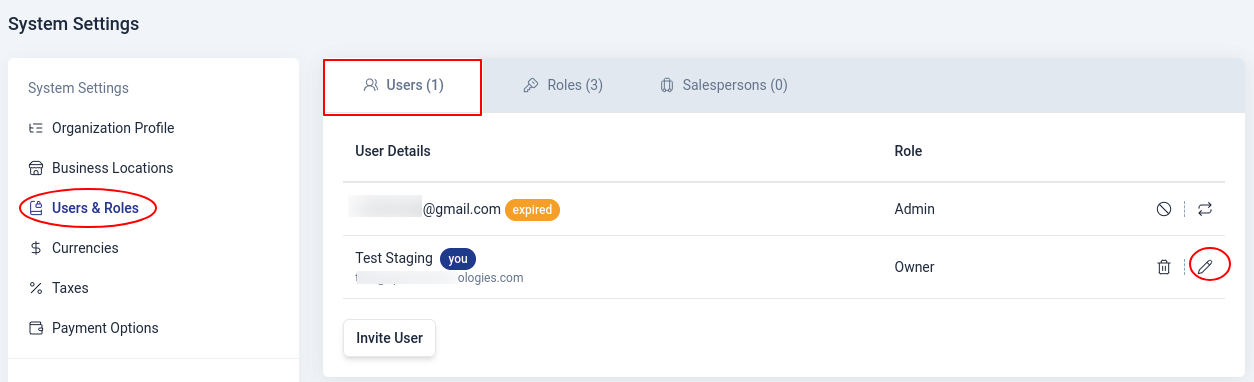
Go to Settings module on the sidebar, navigate to System settings and click on Users & Roles
From Users tab, click on the 'pen' icon next to the user you want to set location restrictions for.
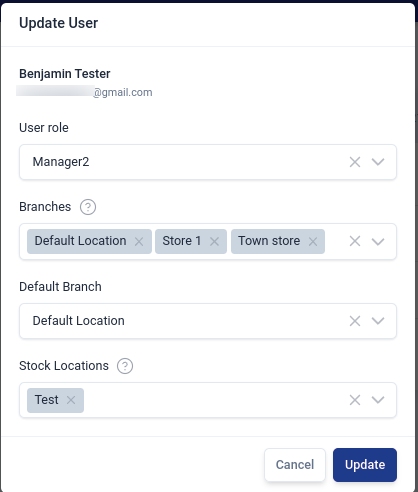
Add branches allowed to the user.
Select the default branch for this user.
Add the stock locations for this user.
Click on 'Update' when done
Fields Information
| Field Name | Description |
|---|---|
| Branches | A list of locations a user can create transactions from. Eg Invoice, Bills, Payments, etc. |
| Default Branch | The location to be chosen by default from the allowed branches list when creating transactions. |
| Stock Locations | These are locations from which the user is permitted to view and source stock. For example, if you are creating an invoice and there is not enough stock in the currently selected branch, you can select stock from another allowed location. However, note that the availability of stock locations also depends on the linked locations of the current branch. |
Permissions Example:
You have four locations: Downtown, Uptown, Suburb, and Warehouse. Downtown has Uptown and Warehouse added to its linked locations list. This means that if a transaction is created from Downtown, stock can be sourced from Uptown and Warehouse. In user settings, the user is granted access to Downtown as a branch, with Suburb and Warehouse listed as stock locations.
Scenario:
If the user creates a transaction from Downtown and there is not enough stock, they can only source stock from Warehouse, not Suburb, even though they have access to Suburb as a stock location. This is because the permissions of linked locations take precedence over the user's stock location permissions. Since Downtown does not have Suburb listed as a linked location, the user cannot access Suburb for stock.
Additional Context:
These settings ensure that users can only access and utilize stock from predefined and permitted locations, maintaining control and consistency in stock management. By adhering to these guidelines, you can effectively manage user permissions and stock locations, ensuring a smooth and controlled inventory management process.