
Appearance
Location Operations
When you have multiple locations in your organization, you can perform the following operations:
Tracking stock across multiple locations
Selecting a location for dispatching/receiving the goods
Viewing inventory item transactions across different locations
Sales by item report across different locations
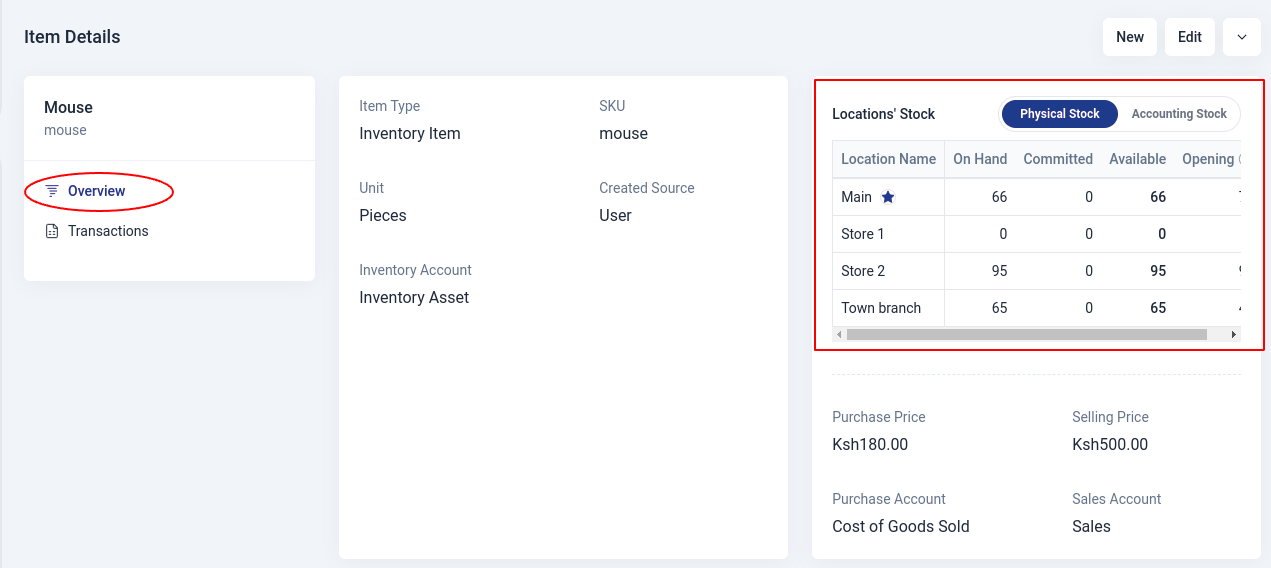
Tracking Stock Across Multiple Locations
In the overview page of an item, you will be able to view the the distribution of available stock across different business locations.
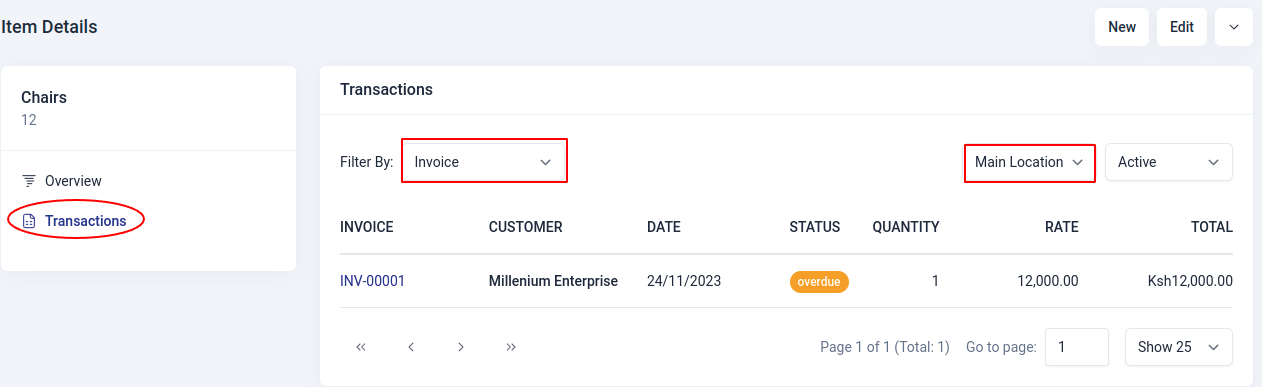
Viewing inventory item transactions across different locations
To view inventory item transactions across different locations, follow these steps:
Navigate to the Inventory Item view page.
Click on the Transactions tab.
TIP
You can filter the transactions by various criteria, such as: estimate, invoice, sales order, purchase order, bill, vendor credits and credit notes.
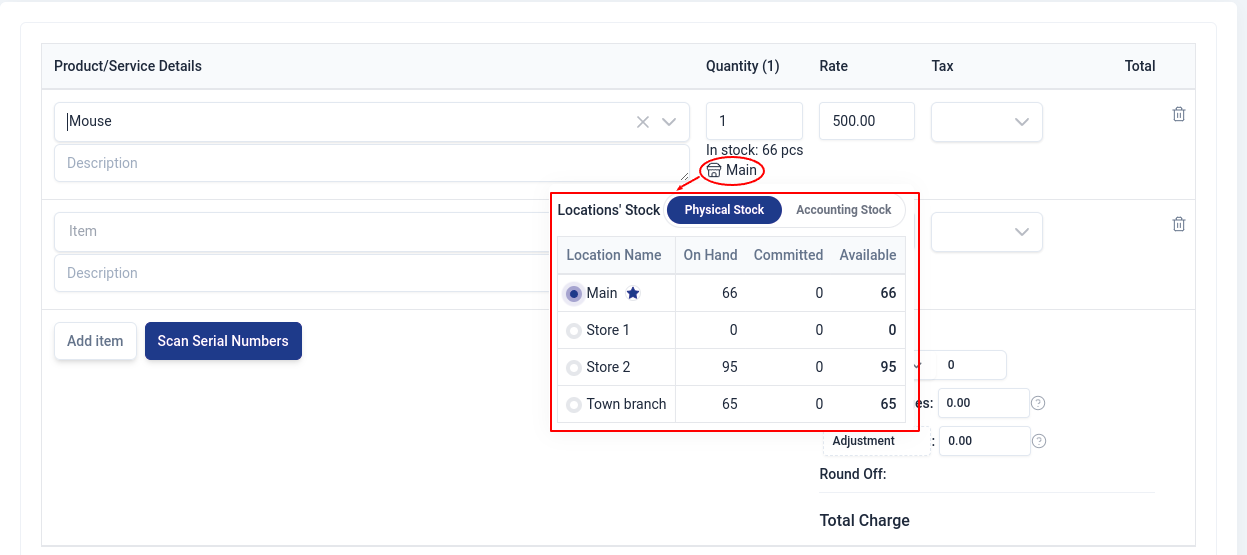
Selecting Location for dispatching/receiving goods
In estimates,sales orders and invoices, you can select the location from which you want to dispatch the goods. You can also select a different location for an item if there is not enough stock.
While recording credit notes, you can select the location where you want to deposit the returned goods.
In purchase orders, bills and vendor credits, you can select the preferred location to which your purchased goods has to be delivered.
INFO
To select stock from other locations, you need to link these locations to the default location in the business locations settings.
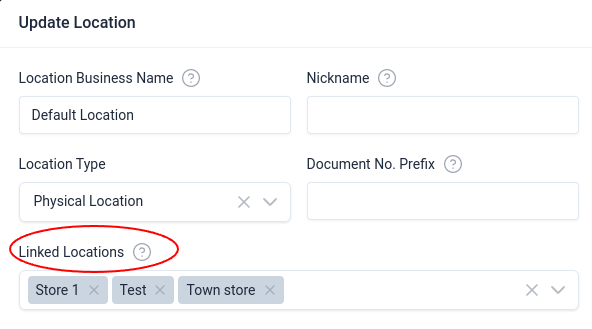
Linked Locations
You can link more than one location to a location. This is useful when you want to pick stock from these other locations. When you link a location to another location, you can pick stock from the linked location when creating an estimate, invoice, sales order, purchase order etc.
For example, from the image below, you can pick stock from the 'Default location' or any of the linked location i.e Store 1, Test, Town store, when creating an invoice.
Sales by Item report in different locations
To view the sales of items across different locations, follow these steps:
- Navigate to: Reports > Sales > Sales by Item.
- In the Sales by Item report, select the desired location to see the sales data for that specific location.
