
Appearance
Inventory Items
Items are the goods or services essential to your business operations.
Item Types
Choosing the correct Inventory Item Type ensures your products and services are tracked and managed properly.
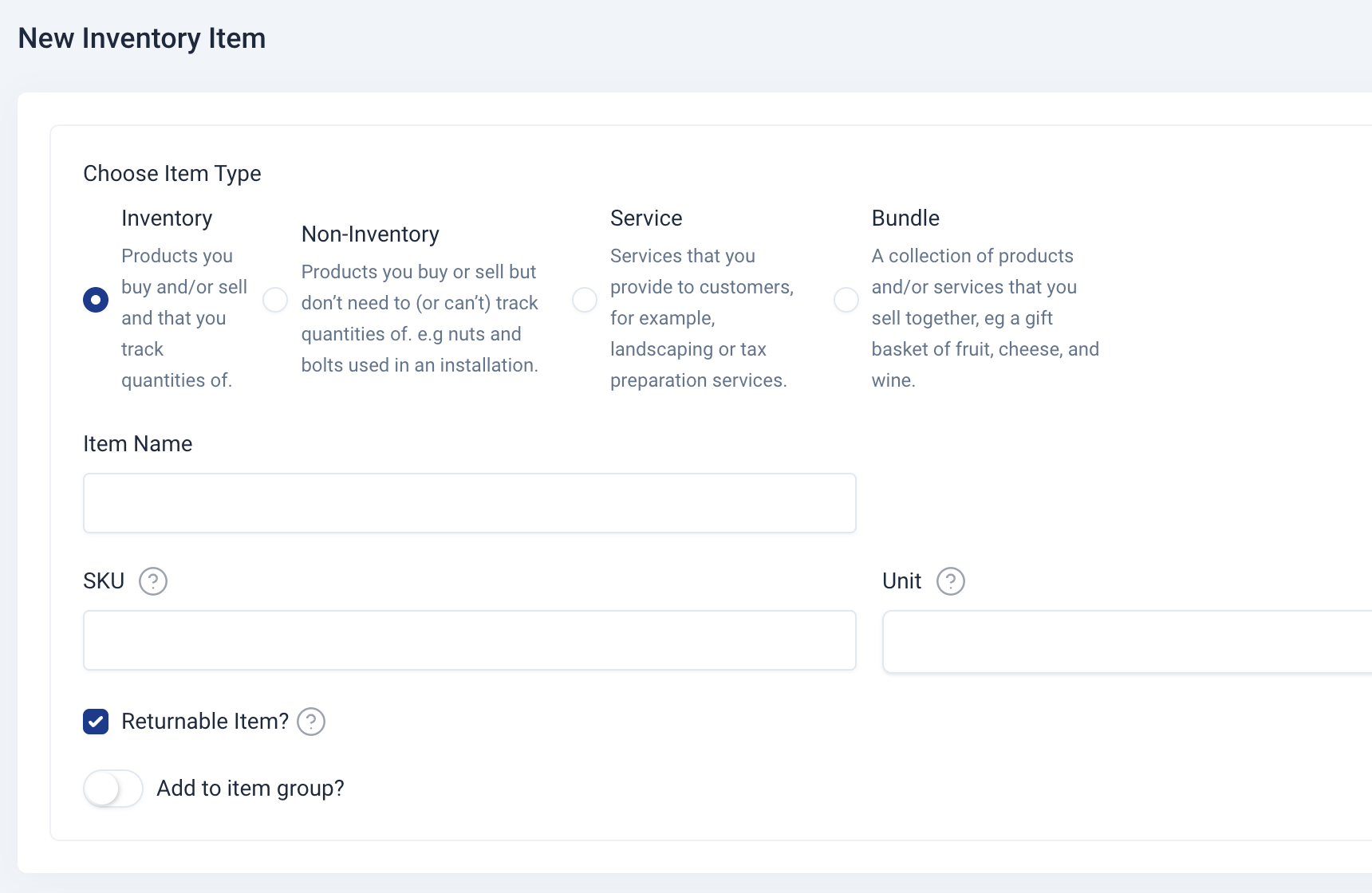
Inventory
Items you buy and/or sell and track quantities for. Choose this type for physical goods where stock levels need to be monitored. Quantities automatically update when purchases or sales occur.
Examples: Computers, Furniture, ClothingNon-Inventory
Items you buy or sell but don’t track quantities of. Ideal for materials or supplies used during work that aren’t practical to track individually.
Examples: Nuts and bolts, Office supplies, Cleaning materialsService
Work or labor provided to customers. Select this for non-physical offerings such as time-based or project-based services.
Examples: Landscaping, Consulting, Tax preparationBundle
A group of products and/or services sold together as a single item. Perfect for kits or packages. When a bundle is sold, the system automatically adjusts quantities for all included items.
Setup Note: When creating a bundle, a section titled “Products/Services Included in the Bundle” appears. Use it to specify each component and its quantity.
Examples: Gift basket (fruit, cheese, wine), Installation package (hardware + service), Promotional kit (brochure, t-shirt, consultation), Furniture set (7-seater sofa set)
Creating an Item
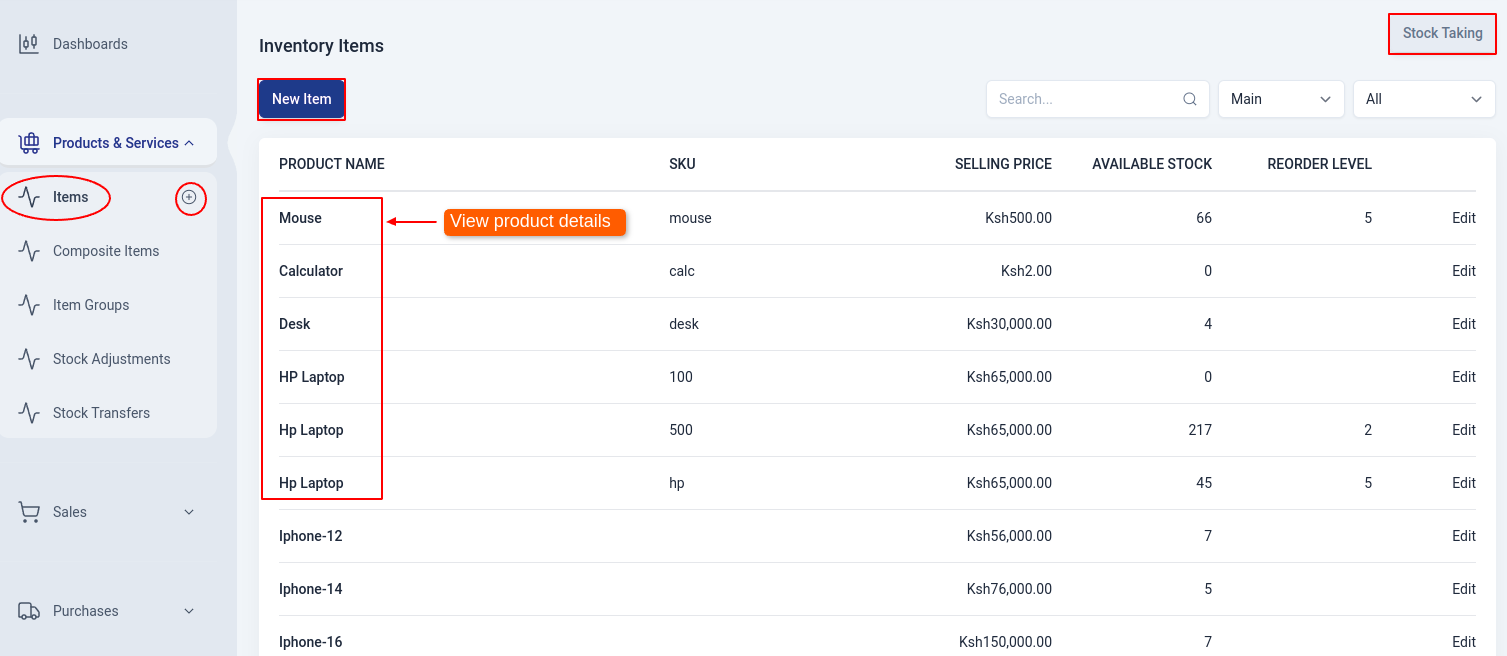
To create an item,
Navigate to Products & Services module on the sidebar, and click on 'Items' section.
Click on the 'New Item' button at the top-left of the list page. There's also a shortcut,click on the plus sign (+) next to items on the sidebar.
TIP
Alternatively, click on a product name on the list page,that will lead you to the item overview page, and click on the 'New' button at top-right of the item details page.
Then, once you click on one of the above,the edit page will appear. Choose the item type (inventory, non-inventory and service) and fill in the item details.
If the inventory item is not tracked, you can add the opening stock for different locations by clicking on the 'Add Opening Stock' button at the bottom of the page.(This is optional)
Click on 'Save' to create the item or 'Save & New' to create another item.
Products/Services Included in the Bundle
In this section, you define the individual products and services that make up the bundle. Each component can be selected from your existing item list, and you can specify the quantity for each one. For example, if the bundle is a Sandwich, the associated items could include bread, lettuce, tomatoes, cheese, and chicken. When the bundle is sold, the system automatically adjusts the quantities of each included item based on the specified composition.
Sales Information
| Field Name | Description |
|---|---|
| Selling Price/Rate | The rate at which you offer your clients the product. Your sales transactions, such as invoices and sales orders, will show this rate. |
| Sales Account | Account used to track sales of an item. |
| Sales Description | Notes related to sales of an item. |
| Sales Tax | Tax applied to the item when being sold to customers. |
Purchase Information
WARNING
If users don't have permission to view purchase prices, these prices will be displayed as zero. To manage this permission, navigate to User Role > Edit. Then, under Permissions, go to Items > Item > More Permissions (the horizontal dots), and enable or disable View the item’s purchase price as needed.
| Field Name | Description |
|---|---|
| Purchase Price/Rate | The rate at which you buy the item from vendors. Your purchase transactions, such as bills and sales orders, will show this rate. |
| Expense Account | Account used to track purchase made for items in Upscale ERP. |
| Purchase Description | Notes related to purchase of an item. |
| Purchase Tax | Tax applied to goods when bought from suppliers. |
Other Inventory Information
| Field Name | Description |
|---|---|
| Inventory Account | Account that monitors the stock of a particular item or product. |
| Reorder Level | Point at which item should be re-ordered. |
| Opening Stock | Quantity of an item at hand on the opening balance date. |
| Opening Stock Value | Cost at which you purchased the item for the opening stock. |
Tracking Inventory
In Upscale ERP, inventory can be tracked by two methods through:
- Serial numbers
A serial number is unique and individualized combination of numbers, letters, or symbols assigned to a specific item, product, or component.
- Batches
Also known as batch tracking, is a method of monitoring and managing groups of items or products that were manufactured or processed together during a specific production run or time period.
Stock Taking
In Upscale ERP, you can perform stock taking by comparing the system stock with the available stock through manual counting. This process allows you to reconcile any discrepancies between the recorded inventory in the system and the actual physical stock on hand.
To perform stock taking, click on the 'Stock Taking' button at the top-right side of inventory items page. A popup window appears with a list of all the inventory items in the system.
Stock taking window actions include:
- Checkbox to hide/show system quantity
- Search Item by name
- Filter items based on location
- Filter by item type
- Print stock taking document
Items View Page
An Upscale ERP customer can be able to view details about a specific item on the view page.
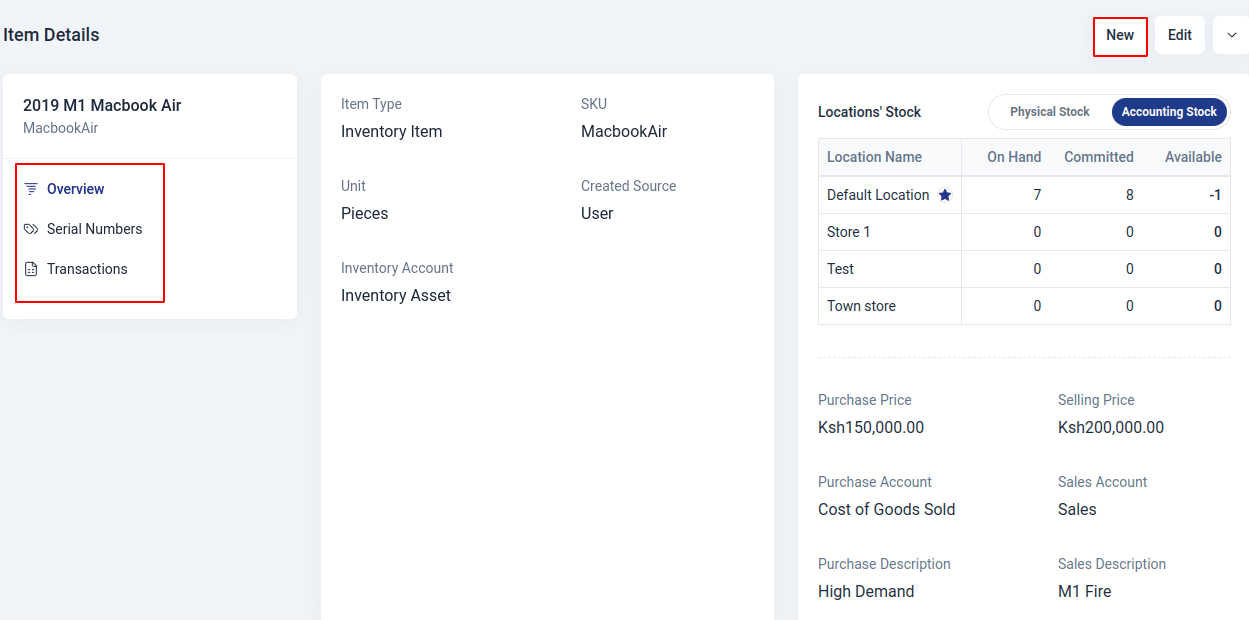
The details include:
- Overview
This selection shows general details about a specific item for example,the inventory account,Physical stock and Accounting stock.
- Serial Numbers
Here, all available serial numbers for the specific item are shown.
- Transactions
This selections displays all the transactions (invoices) carried out with the item in question.
Item Bundle Features
Item that is of bundle type usually shows more options and a couple of features, starting with the top-right part of the page,where there's New, Edit, Create Bundle and Unbundle Items.
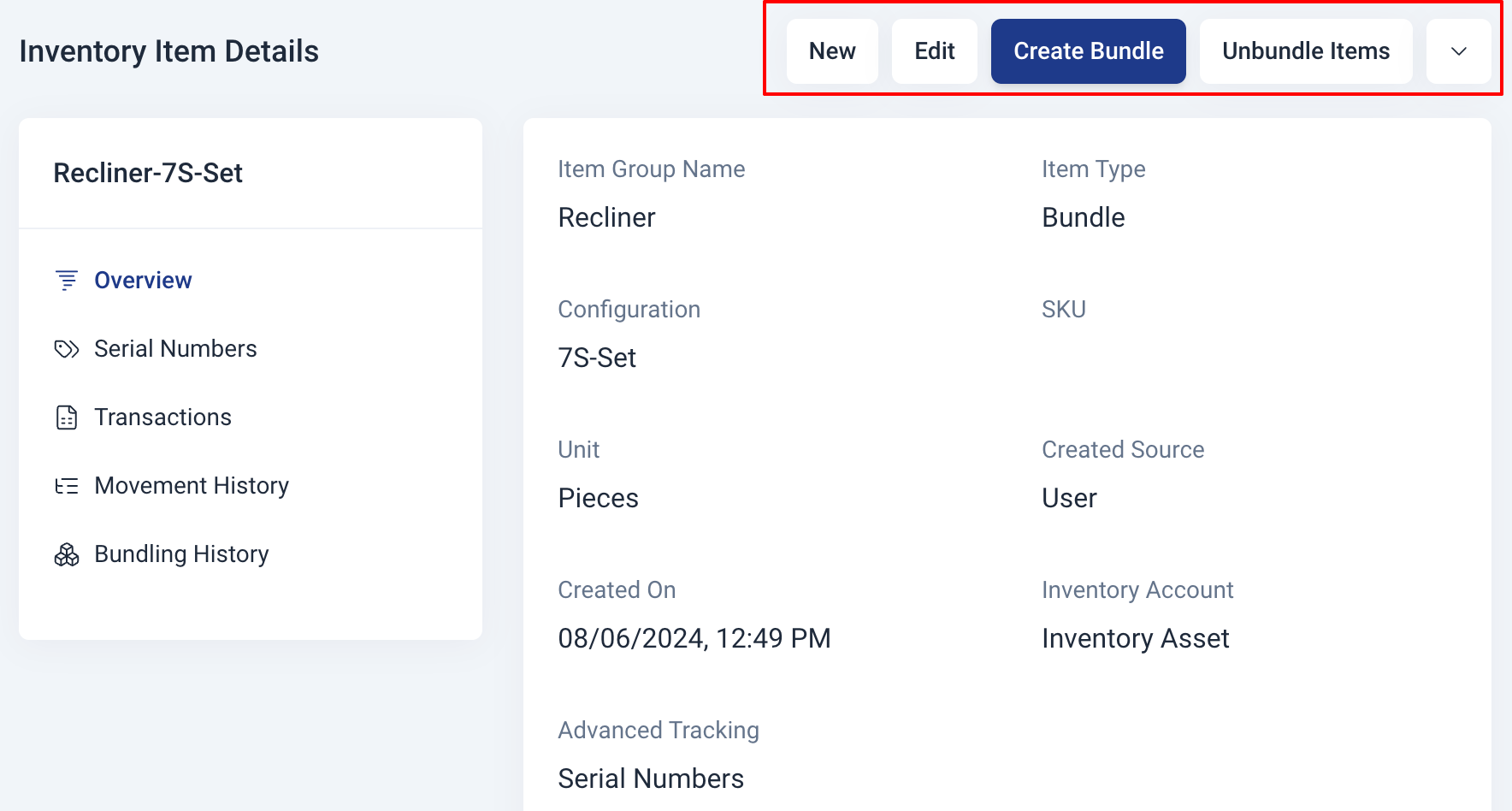
Item Bundling
The process of combining various components in the right amounts to create a single good is known as bundling. These elements may consist of products, services, or any other non-inventory items you want. To raise the stock level of your bundle item in Upscale ERP, you can build bundles.
To bundle an item:
Click on 'Create Bundle' button at the top of item details page.
Enter bundling Date, Quantity to Bundle and the description within which you’d like to create the bundles for this item.
The bundle item's related products & services will be automatically filled in. You have the option to add, subtract, and adjust the quantity of any item to suit your needs.
If the associated products & services are tracked by serial or batch numbers. Click Select Serial Number or Select Batch Number option and enter the serial and batch details for the specified quantity.
Click on 'Bundle Items' to finish the operation.
Item Unbundling
Unbundling is the process of breaking down a bundle into its individual components. This is useful when you need to return a product or service to its original state.
To unbundle an item:
Click on the 'Unbundle Items' button.
Enter the unbundling Date, Quantity to Unbundle and the description within which you’d like to unbundle the bundles for this item.
The bundle item's related products & services will be automatically filled in. You have the option to add, subtract, and adjust the quantity of any item to suit your needs.
If the associated products & services are tracked by serial or batch numbers. Click Select Serial Number or Select Batch Number option and enter the serial and batch details for the specified quantity.
Click on 'Unbundle Items' to finish the operation.
Bundle Details
To view bundle details, click on 'Bundling History' on the sidebar, then select the bundle number from the bundling history list.