
Appearance
Vendors
In Upscale ERP, you have the flexibility to manage your business relationships by adding vendors to your organization.
When you need to manage purchase transactions like bills and purchase orders, adding vendors is a crucial step in the process.
Creating a New Vendor
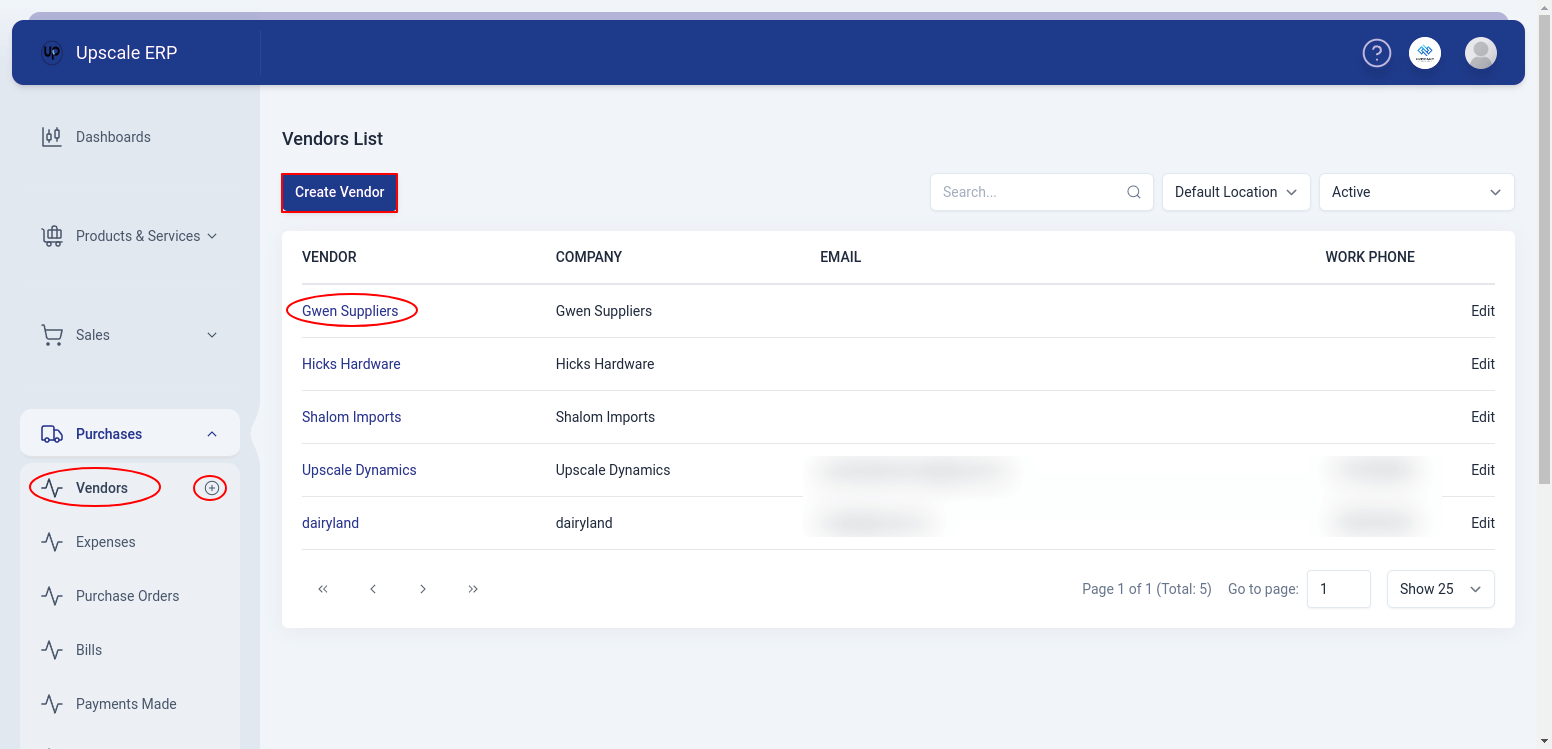
To create a vendor, follow these steps:
Navigate to vendor module
Click on the 'Create vendor' button on the List page. Alternatively,a shortcut that can be used is to click on the plus sign (+) next to vendor on the side bar and it will take you to the create vendor page.
When you get to the "create" screen, choose the vendor type, whether an individual or a whole business and fill in the general details like name, company name, email, display name and vendor phone.
In the 'Other Details' section, choose the branch, currency the vendor uses, enter the credit limit,payment terms, portal language etc
There is an option 'Addresses' especially for international vendor to input details like billing address, shipping address, country/region, etc
The option 'Contact Persons' enables you to link several people or contacts to a single vendor record. Businesses that deal with diverse individuals who serve different positions or have varied duties inside a client company may find this capability especially helpful.
If there's more contact details to add, such as facebook, twitter, skype id or department, click on the 'More primary contact details' found at the bottom.
Once done filling in all this information, click on Save or Save & New to create another vendor
TIP
Alternatively, click on a vendor display name on the list page,that will lead you to the overview page, and click on the 'New' button at top-right of details page.
Vendor View Page
To view a vendor details, click the vendor display name on the list page which will lead to the overview page.
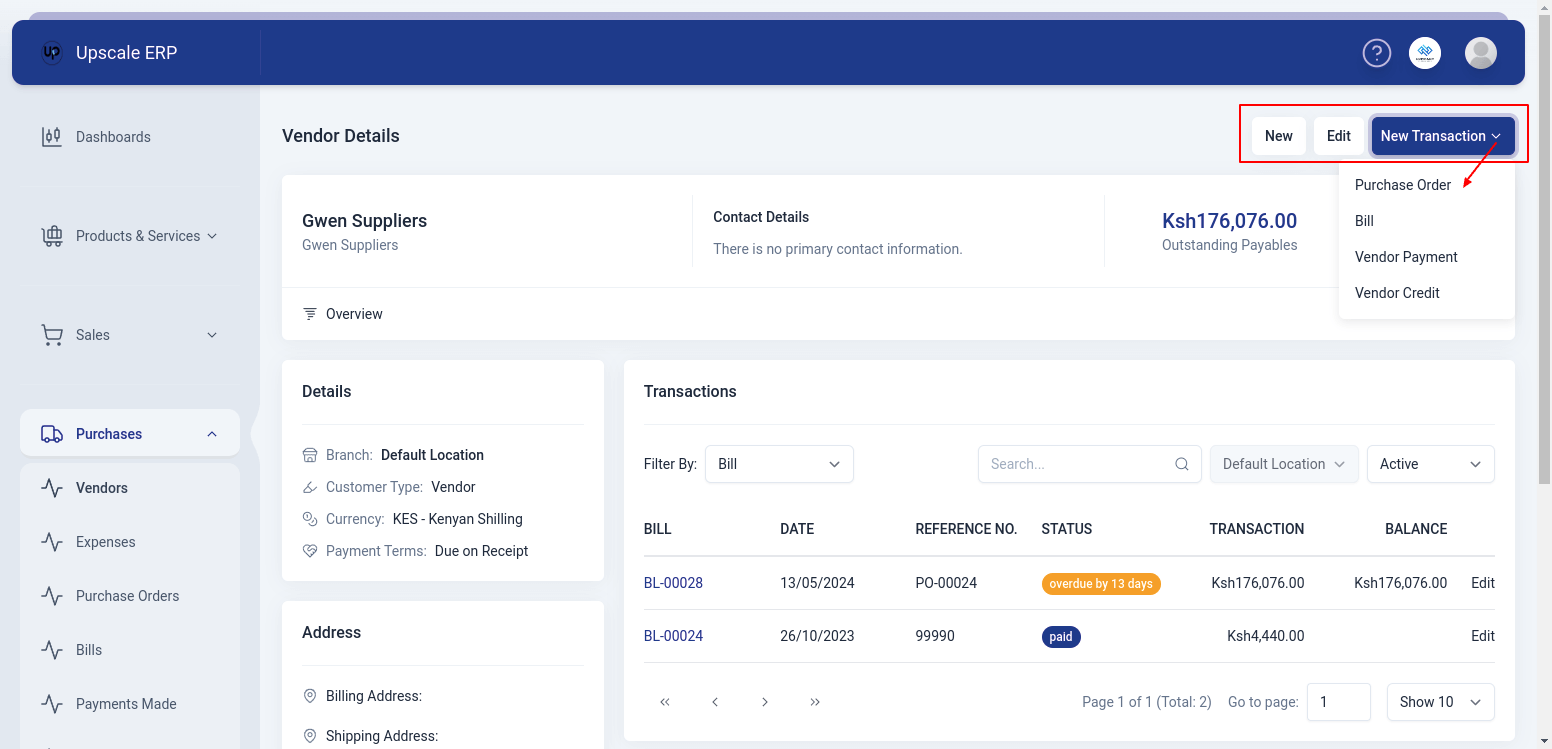
The vendor view page has a number of sections,these include:
- Overview section
Here,we have details like vendor, contact details, outstanding receivables and amount of unused credits.
- Outstanding Receivables
Outstanding receivables, or accounts receivable, are the money that a business is waiting to get paid by its vendors for things they've already sold or services they've provided.
- Details section
Information such as credit limit, vendor type, currency and payment terms are displayed here.
- Address
This section contains available addresses for the vendor.
- Transactions
Provides a list of the vendor's purchase transaction history.
Vendor View Page Features
- New
Used to create a New vendor.
- Edit
Used to edit an already existing vendor's details.
- New Transaction
Helps you quickly create a new document like an expenses, purchase orders, bills, payment made, or vendor credits by filling in the vendor's details automatically.
Deleting a Vendor
To delete a vendor, you have to delete all the transactions recorded under the vendor which can be viewed in the Transactions section on the vendor view page.