
Appearance
Quick Start
This guide will help you get started with Upscale ERP.You will learn how to create and setup an organization, configuring your organization, adding inventory items, add your first customer, make your first sales and order items from the vendor.
Creating & Setting Up Organization
After signing in to your Upscale account, you can add your business by creating an organization.Here's how to do it:
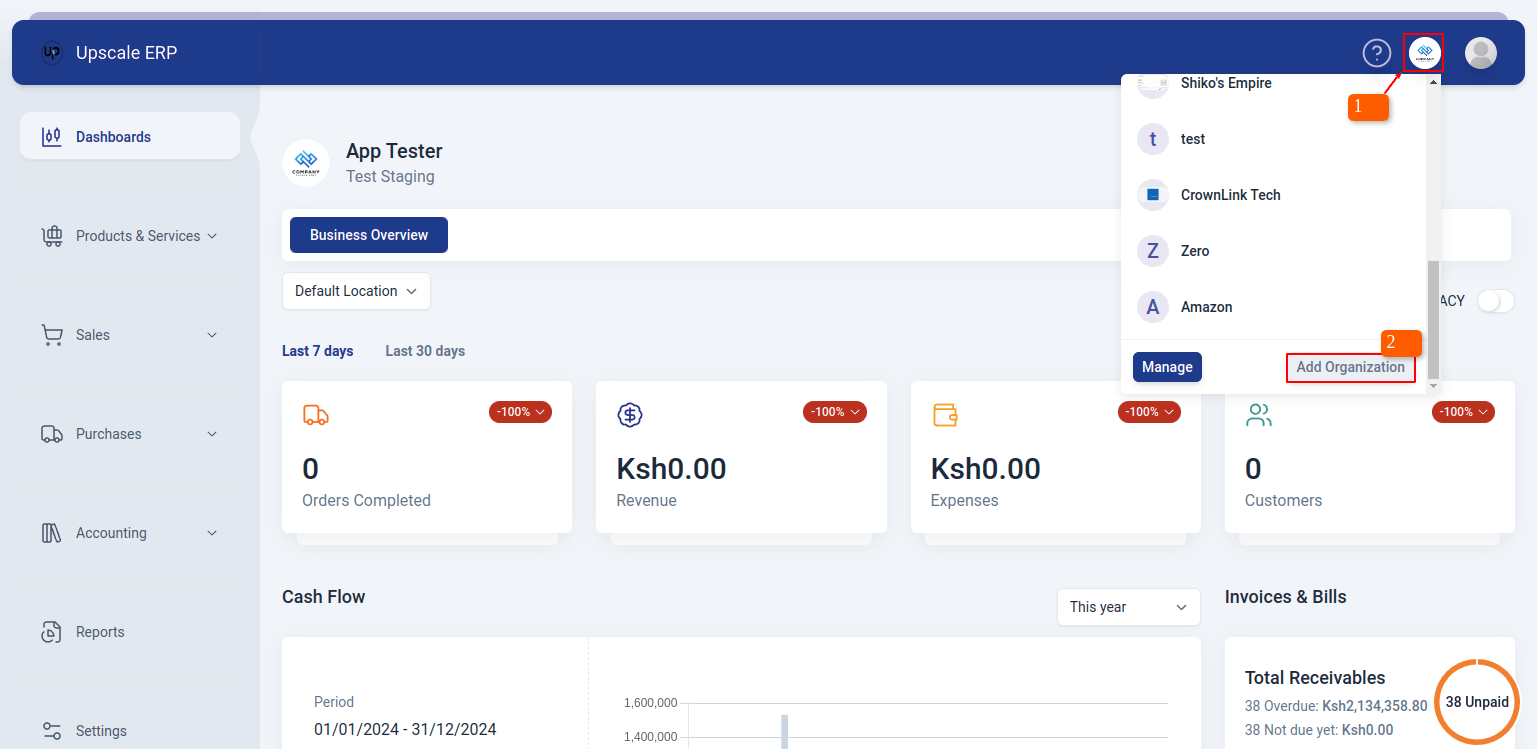
- On the top-right of the page, click on the organization button, then click on "Add Organization" button from the dropdown menu.
- Fill in your new organization details then click "Next" to proceed to page two, where you can input the taxes charged in your business, click 'submit' when done.
Learn more on setting up an organization
Configuring the Organization
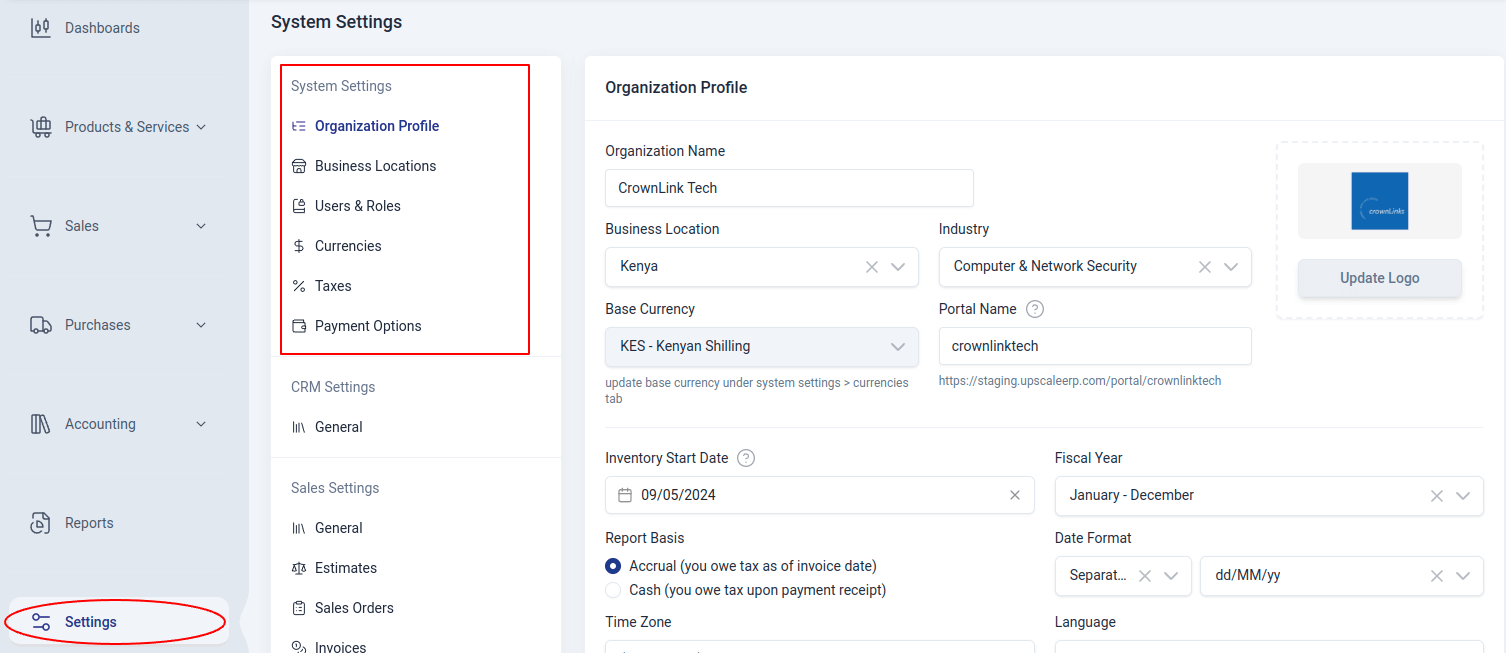
Setting Up Business Location
Once you have created your organization, you can add your business locations.
Locations refers to the physical places where a business operates or stores its inventory. These locations can include branches, warehouses, or any other physical spaces associated with the business.
For example, let's say you have a retail business with multiple stores in different cities. Each store would be considered a separate location. By adding these locations to your organization, you can manage inventory, track sales, and perform other business operations specific to each location.
To add a new business location, go to Settings > System Settings > Business Locations Learn more here
Setting up the correct user role
Role
A Role in the Upscale ERP system defines the level of access and permissions that a user has within the organization. Roles determine what actions a user can perform and which areas of the ERP system they can access.
Learn more on adding access roles
User
A User in Upscale ERP refers to any individual who has been granted access to the organization's ERP system. Each user can perform various functions and tasks within the system based on their assigned role. Users are essential for the operation and management of the ERP system, allowing different members of an organization to collaborate and manage various aspects of the business processes. Learn how to add users in your organization
Add Salespersons
A Salesperson in the Upscale ERP system is a user role specifically designed for individuals responsible for managing and driving sales activities within an organization. Salespersons are associated with sales transactions and often earn commissions based on the sales they generate. Learn more on adding a salesperson
Key Differences Between Users and Salespersons:
Users: Regular users have access to various modules and perform tasks related to their specific roles.
Salespersons: They are associated with sales transactions to track their performance and accurately calculate commissions.
Add Currencies
In Upscale ERP, you have the flexibility to create sales and purchase transactions in currencies other than your base currency. This feature supports businesses operating in multiple countries or dealing with international clients and suppliers.
Base Currency
The base currency of your organization is determined by the business location selected during the setup process. This currency is used as the default for all financial transactions. For example, if your business is located in Kenya, the base currency will be Kenyan shillings (Kshs).
Learn how to add currencies here
Add payment modes
A Payment Mode in Upscale ERP refers to the method or channel used to complete a financial transaction. Payment modes can include cash, bank transfers, credit cards . By setting up payment modes in the ERP system, businesses can streamline the payment process, track transactions, and provide customers with multiple payment options. Learn more
Adding inventory items
Item
An Item in Upscale ERP refers to any product or service that a business buys, sells or manages within its inventory. Items are central to the ERP system as they form the basis for sales, purchases, and inventory management operations. To create inventory items, go to Inventory > Inventory Items > New Items. Learn more on adding inventory items
Item Groups
An item group is a classification or category used to put related or comparable products or commodities together. Item groups can help you manage many items easily as a group. E.g Electronics,Accessories Clothing, etc. To create items groups, go to Products & Services > Item Groups > New Item Group. Learn more on creating item groups
Adding Your First Customer
Customers in Upscale ERP are essential for creating sales transactions such as estimates, invoices, credit notes or sales orders. To create and manage customer records in Upscale ERP, go to Sales > Customers > Create Customer. Learn more
Make Your First Sale
Create Invoice
Create an invoice to send to your customers for goods or services provided. On the edit page, enter all details about the sale transaction.
When saving an invoice, you have two options:
- Checkout Invoice: For transactions already paid by the customer. Save the invoice and record the payment. Click Checkout, select the payment mode in the popup, and apply. You can split payments across different modes.
- Save and Receive payment later: Click Save to save the invoice as unpaid. Later, create a customer payment by going to Sales > Payments Received here.
You can also save the invoice as a Draft to edit later. For more details on creating and working with invoices, visit Sales > Invoices. Learn more.
Buying new items from a vendor
Create Bill
A Bill is a document that records the amount owed to suppliers for goods or services received. In our system, creating a Bill will also update the inventory stock levels to reflect the newly acquired inventory items. To create a bill, go to Purchases > Bills. Learn more