
Appearance
Stock Transfers
Stock transfer refers to the process of moving inventory from one location to another within the same organization. This can involve transferring goods between different warehouses, retail stores, or departments to ensure optimal stock levels and meet demand efficiently.
Creating Stock Transfers

To transfer stock from one business location to another,
Navigate to Products & Services module on the sidebar, click on the 'Stock Transfers' section.
Click on the 'New Transfer' button at the top-left of the stock transfer page.
TIP
There's also a shortcut,click on the plus sign (+) next to 'Stock Transfers' on the sidebar
Alternatively, click on an Item Transfer # on the list page,that will lead you to the transfer details page, then click on the 'New' button at the top-right of the page
Select the From Location and To Location from the dropdown list and fill in all the other necessary details.
INFO
You need to have more than one location set up for your business to transfer stock from one location to another. If you don't have the locations you want to transfer stock to or from, you can learn how to create them here.
Add items to the transfer by clicking on the 'Add Items' button, then select an item from the input select and enter the quantity to transfer (Transfer Quantity).
If the added item has a serial number click on 'Add Serial Nos' to add them.
Click on the 'Save' button to save the transfer. You can also 'Save as Draft' to complete the transfer later.
Stock Transfer Information
| Field Name | Description |
|---|---|
| From Location | Location where the stock is being transferred from. |
| To Location | Location where the stock is being transferred to. |
| Item Transfer # | Unique number assigned to the transfer. |
| Reference # | Reference number for the transfer. |
| Date | Date the transfer was made. |
| Notes | Reason for transfer |
Transfer Details page
This is where a user can view the details of the transfer like the transfer number, date, status, from location, to location, and the total quantity of items transferred.
To view transfer details, click on the Transfer # on the stock transfer list page which will lead you to the transfer details page. The transfer details page has a number of sections that include:
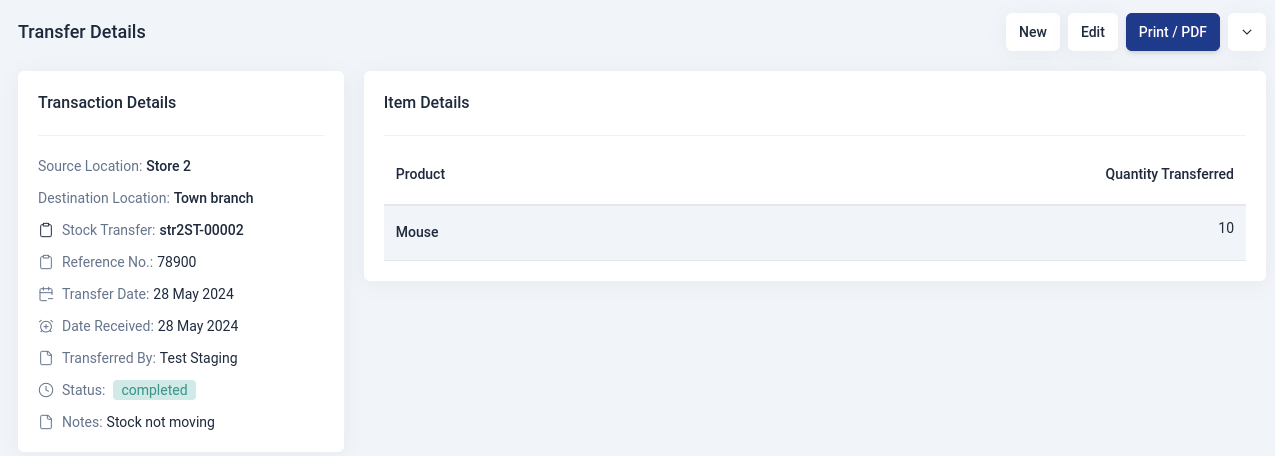
1. Transfer Details
This section displays all the transfer detail information, the transfer number, date, status, from location, to location etc.
2. Items Details
This section displays the items transferred and quantity transferred.