
Appearance
Upscale Web App
You can enhance your experience with Upscale ERP by installing it as a Progressive Web App (PWA). This allows you to use Upscale ERP as a standalone app, providing the convenience and feel of a native application directly on your device. It offers the same features and functionality as the web version, but with the added benefits of convenience, faster load times, and a more app-like experience.
Installing the PWA on Windows, macOS, or Linux
You can install the Upscale PWA in Windows, macOS, or Linux by using the browser's install feature. Here's how you can do it:
- Open the Upscale web app in your browser, Chrome, Brave or other Chromium based browsers.
- Click on the install icon in the address bar.
- Click on the
"Install"button in the pop-up window. - The Upscale PWA will be installed on your device.
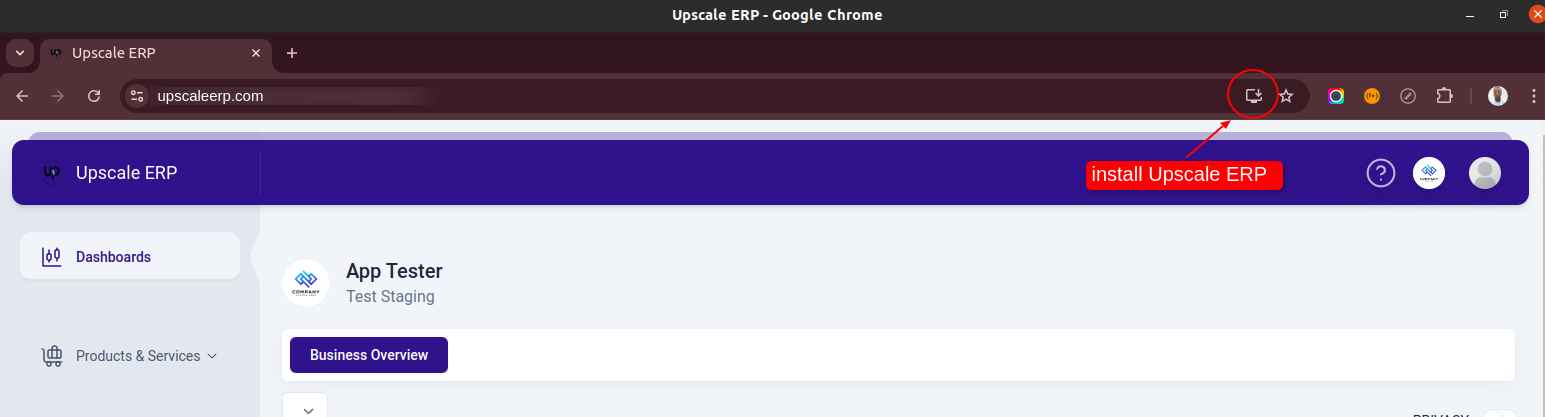
Once installed, you can open the Upscale PWA from the Start menu, making it also available for app search.
Enable Multiple PWA tabs
Creating tabbed windows allows multiple instances of Upscale ERP PWA to be active at once. This allows someone to have the multiple tabs open at the same time.
Use Ctrl + Page Up/Down to navigate between the tabs quickly. To open a new tab, click on the "+" icon on the top bar of the Upscale PWA or use "Ctrl + T".
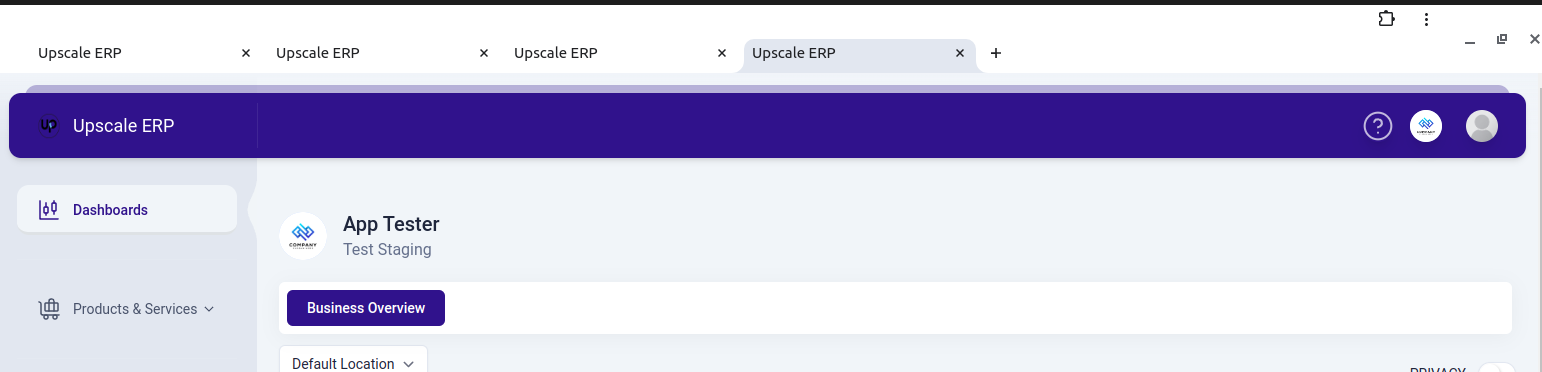
Enable PWA tabs in Chrome
Here are the steps to have this functionality:
- In Chrome, type
chrome://flagsin the browser's address bar and press enter. Use the search function to look for the two settings seen in the screenshot below. Enable them using the drop downs to the right.

- Restart Chrome to allow the changes to take effect.
Learn more about PWAs by exploring the official Google web apps guide.