
Appearance
Set Up Business Locations
You can add multiple business locations in Upscale ERP. This is useful if you have multiple branches or warehouses. When you add a new organization a 'default location' for your organization is set.
Go to Settings module on the sidebar, navigate to System Settings and click on Business Locations.
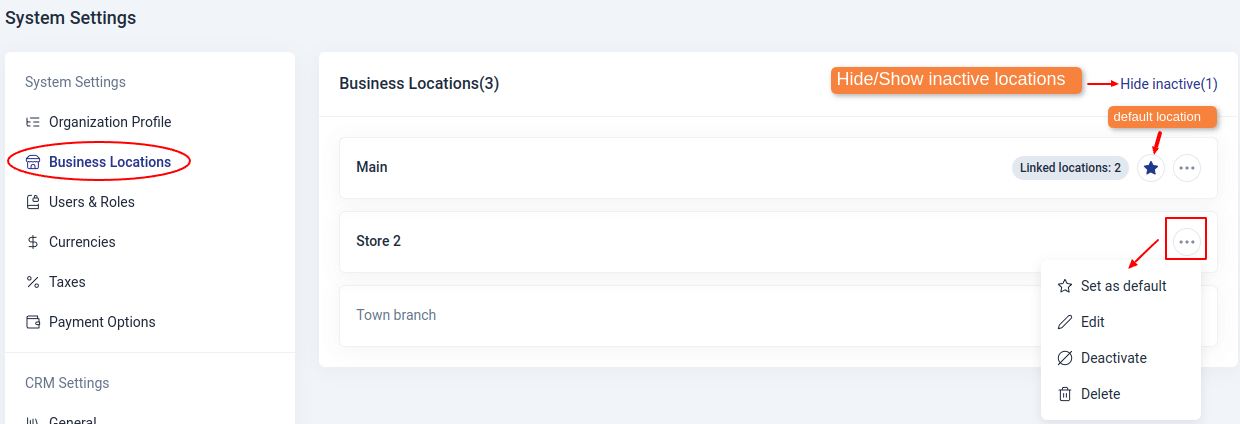
Editing Default Location Information
To update default location information,
- Click on the ellipses (3 dots ) at the end of default location then select 'edit' from the dropdown.
- Fill in the location details then click on 'Update' button to save the location details.
INFO
Default location is marked by ⭐
See the table below for more information on location fields.
Fields in Location Information
| Field Name | Description |
|---|---|
| Location Business Name | This is the name that will be used in transaction documents and inventory. |
| Nickname | This is an internal name for the location |
| Location Type | This is where the user selects the type of location, which can be physical, mobile, or virtual. Physical Location for a physical storefront. Mobile Location if you don’t have a physical location ie. mobile business. Use virtual if you are selling online. |
| Document No. Prefix | A prefix for the location transaction numbers. eg if the prefix is MN-, for invoices it will be MN-INV-00001 |
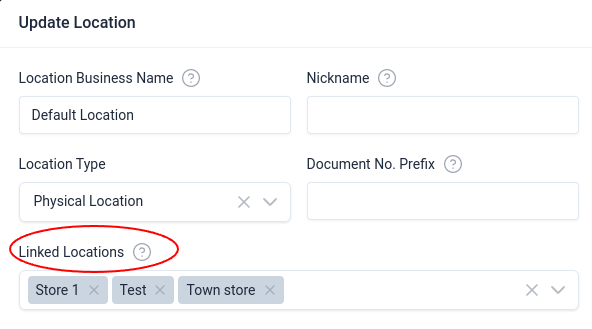
| Linked Locations | These are locations where if the location is selected as a branch, stock can also be picked from them. |
| Description | This field is for providing more information about the location. |
| Location Address | This is where the user can input the physical address and contact information of their business location. |
Linked Locations
You can link more than one location to a location. This is useful when you want to pick stock from these other locations. When you link a location to another location, you can pick stock from the linked location when creating an estimate, invoice, sales order, purchase order etc.
For example, from the image below, you can pick stock from the 'Default location' or any of the linked location i.e Store 1, Test, Town store, when creating an invoice.
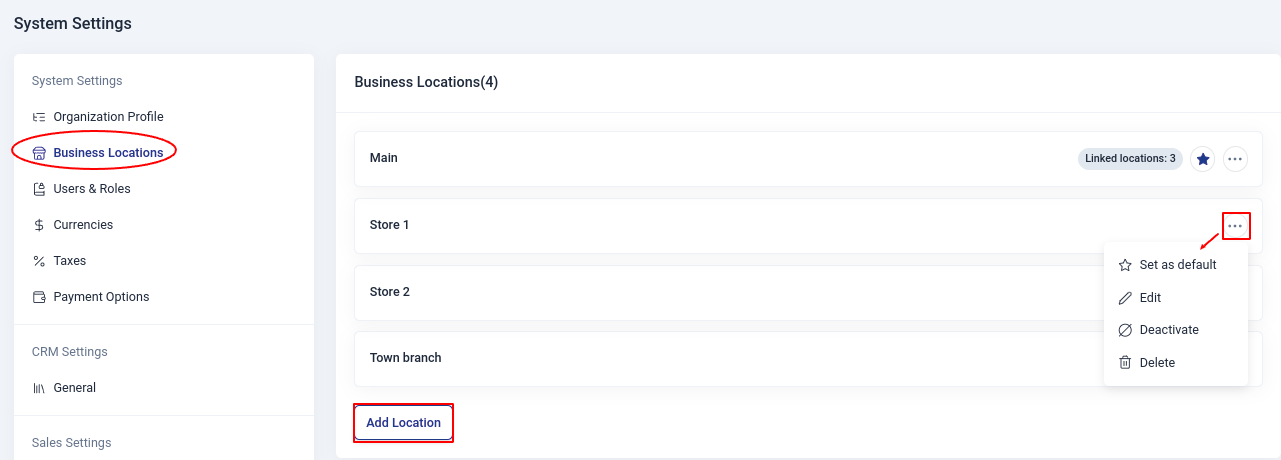
Adding New Location
To add location in your organization,
- Click on the 'Add Location' button at the bottom of the business locations page.
- Fill in the location details and click on 'Add' button to save the location details.
Set Default Location
To set a location as the default location,
Click on the ellipses (...) next to the selected location and then select 'Set as Default' option from the dropdown.
Click OK to complete the action.
Editing location Details
To edit a location;
- Click on the ellipses (...) at the end of location, then select the 'edit' option from the dropdown.
- Edit in/out the changes and when you're done click on 'Update'.
Deactivate Location
To deactivate a location,
- Click on the ellipses (...) at the end of a location.
- Then click on 'deactivate' from the dropdown.
- Confirm 'Ok' on the popup window to complete the action.
Activate Location
To activate a location,
- Click on show inactive at the top-right of the business locations page to show inactive locations if they are hidden.
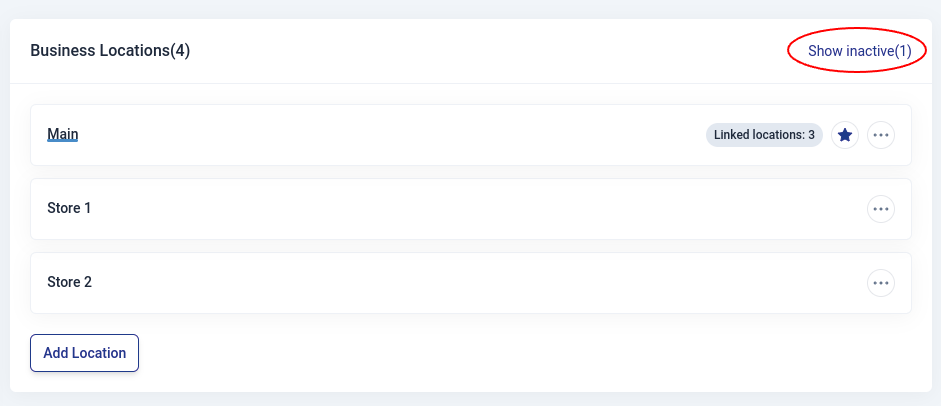
Then click on the ellipses (...) at the end of the inactive location, select 'activate' from the dropdown.
confirm 'Ok' on the dialog to complete the action.
Deleting Location
To delete a location;
- Click on the ellipses (...) at the end of location.
- Then click on 'delete' from the dropdown.
- Confirm 'Ok' on the popup window to complete the action.
INFO
You cannot delete a location which has transactions associated with it. Instead, you can mark the location as inactive.