
Appearance
Sales Orders
A financial document that verifies an upcoming sale is called a sales order. It includes precise information about the amount, cost, and mode of delivery of the goods or services being sold.
Creating a New Sales Order
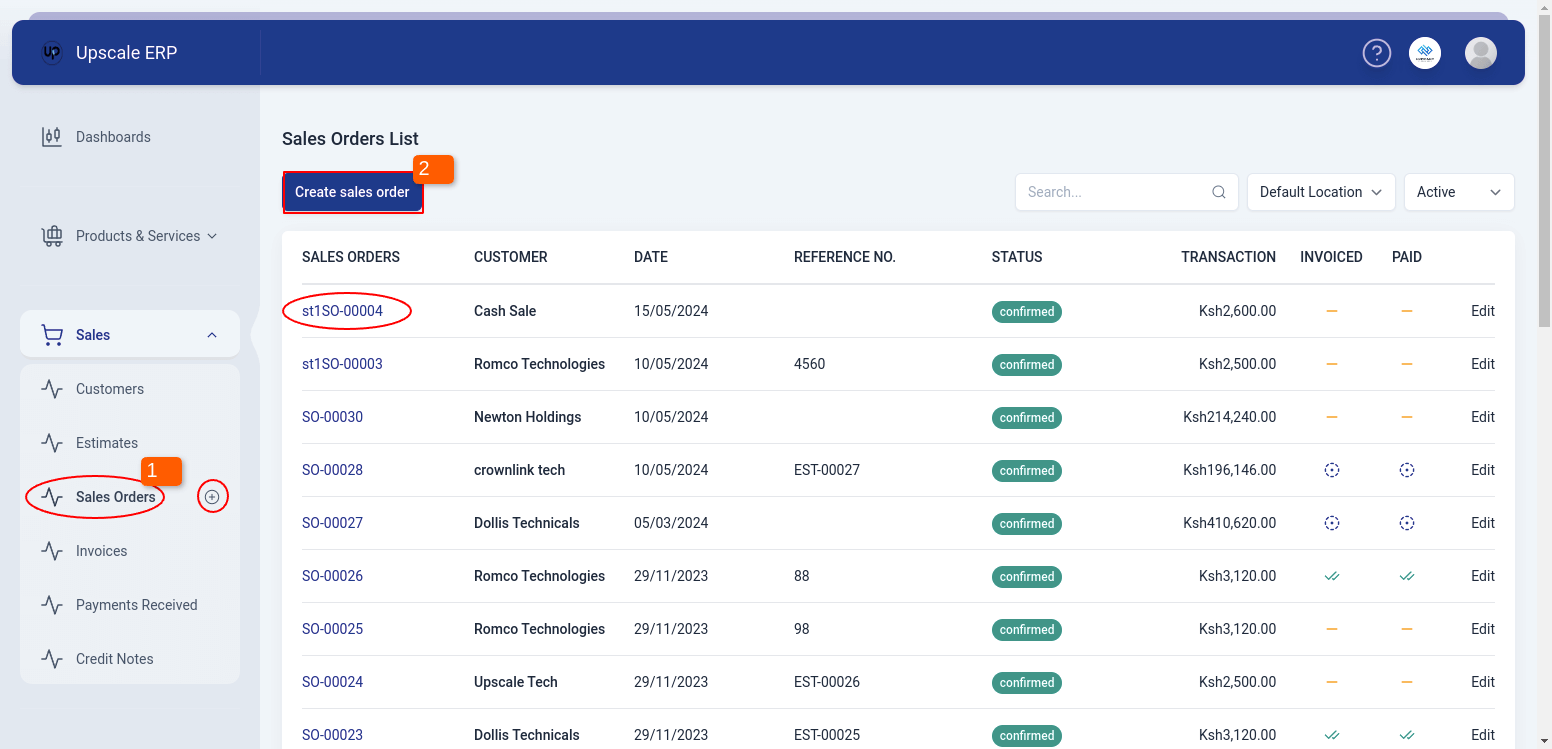
To create a sales order,
Navigate to the Sales module on the sidebar, and click on the Sales Orders section.
Click on the Create Sales Order button on the Sales Orders List page.
TIP
Alternatively,a shortcut that can be used is to click on the plus sign (+) next to Sales Orders on the side bar and it will take you to the create page.
- When you get to the "create" screen, choose the customer, fill in all the other information about the sales order, and choose the items that the customer has approved.
TIP
To include the sales person in this transaction makes sure that the add salespersons option is checked in sales settings . Also check adding salesperson to your organization and generating salespersons report
- When you're finished, click save and the status will show confirmed. Alternatively, you may select save as draft from the dropdown menu if you want to finish the sales order at a later time and the status will show draft.
Viewing a Sales Order
To view a sales order,click on the sales order # on the list page and that will take you to the Sales Order view page.
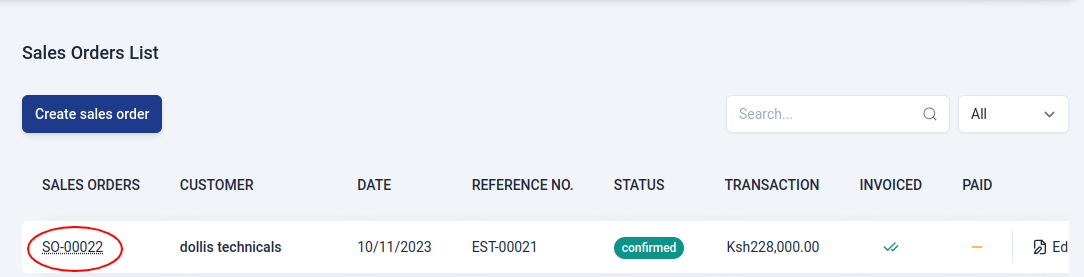
The sales order view page has a number of sections that include:
- Customer Details section
This section contains customer contact information.
- Transaction Details
| Field Name | Description |
|---|---|
| Sales Order# | This is the document number, which can be either automatically generated or manually entered. |
| Estimate No | The linked # of the estimate converted to that sales order. |
| Sales Order Date | Date order is made. |
| Shipment Date | Date expected for the goods to be delivered to the customer. |
| Payment Terms | Terms of payment agreed upon by the vendor and the customer. |
| Status | State of the sales order document. |
| Delivery Method | How the goods are to be delivered. |
- Payment Details section
This section contains information about the payment ,for example,the tax on the goods,subtotal and grandtotal.
- Item Details Table
Table that displays a list of items on the sales order,their quantity and amount.
- Associated Invoice Table
A table that displays invoices related to sales orders.This table appears when you have converted the sales order to an invoice awaiting the customer's payment.
The View Page Features
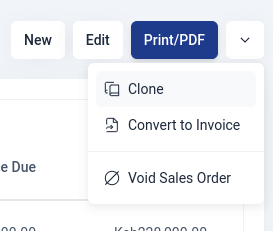
The Sales Order view page has a number of features that include:
- New Feature
This feature simply lets the user to create a new sales order.
- Edit Feature
The edit feature lets a user to change details of an already existing sales order.
- Print PDF
Print PDF lets a user to download a copy of the sales order to send to the customer.
- Duplicate
This feature enables a user to create a duplicate of the sales order.
- Convert to Invoice
When the customer has confirmed a sales order,the sales order is converted to an invoice and then the customer pays for the items requested.This feature makes this process much more efficient.
Deleting a Sales Order
To delete a sales order,go to the Sales Order view page,click on the downward arrow and select 'Void Sales Order', if sure about deleting the sales order, confirm 'Ok'. The status of the sales order will change to void.