Appearance
Sales Settings
General
Customer Credit Limit
As a business owner, when you let customers buy now and pay later, you risk them owing you a lot of money. Upscale ERP helps by letting you set a limit on how much they can owe. This way, you can prevent a pile-up of unpaid invoices, making it easier to manage your finances.
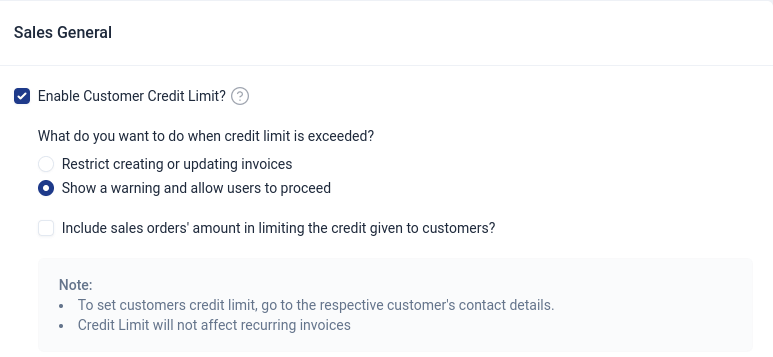
Check the box 'Enable Customer Credit Limit' to enable credit limit.
Actions taken when credit limit is exceeded
There are a number of options of actions that you could choose to happen if a customer exceeds their credit limit.
- 'Update the customers credit limit'
You can edit the customer and update the credit limit to be higher. This is the easiest and most straight forward solution.
- 'Restrict creating or updating invoices'
This option will prevent users from creating new invoices or modifying existing ones when the credit limit has exceeded.
- 'Show a warning and allow users to proceed'
Despite a credit limit exceeding warning, the user has the option to proceed with the transaction if they choose to do so.
- 'Include sales orders' amount in limiting the credit given to customers?'
If an organization limits its credit to customers by include sales orders, then the total amount owes is not just based on the invoices received, but also on the value of outstanding sales orders that they have not yet received.
Attaching PDF
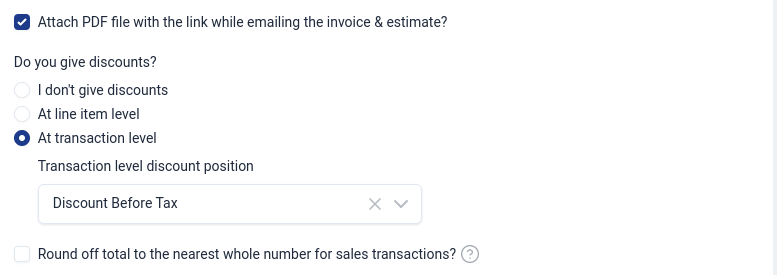
You can choose this option to attach PDF file with the link while emailing the invoice & estimate
Discounts
Here, you decide if your business will offer discounts to customers and determine how these discounts will work. You choose whether discounts apply before or after taxes, and whether the total amount for sales transactions should be rounded off to the nearest whole number.
- Discounts at line item level
This type of discount is applied to individual items or products within a transaction and each product or line item in an order or invoice can have its own specific discount. The discount is calculated based on the price or quantity of that particular item.
- Discounts at transactional level
This type of discount is applied to the entire transaction or order as a whole. Instead of applying discounts to individual items, a single discount is applied to the total amount of the entire transaction. This can be a percentage or a fixed amount that is deducted from the total sum of the order.
Additional Charges
Here, you can choose additional chares to add to your organization like adjustments and shipping charges.

Tax
You choose whether you sell your items at rates inclusive or exclusive of tax.

Adding field for salesperson
This field allows you to associate a particular salesperson with a sale or business transaction.

Showing images in sales documents items table
You can choose to add visual representations or pictures alongside the item details within a table on sales documents.
Estimates
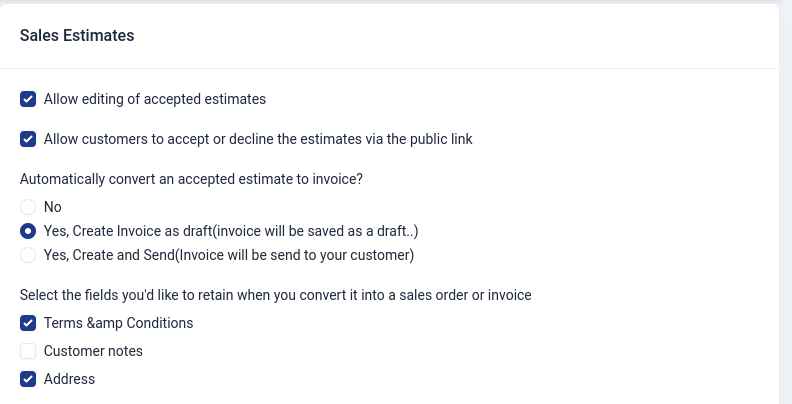
Here you can find settings related to estimates in your organization,you can customize them by choosing your preferences.
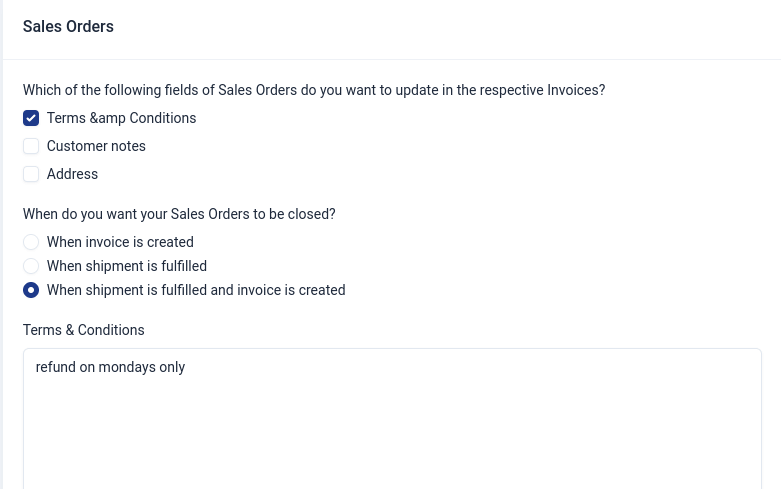
Sales Orders
Here you can find settings related to sales orders in your organization,you can customize them by choosing your preferences.
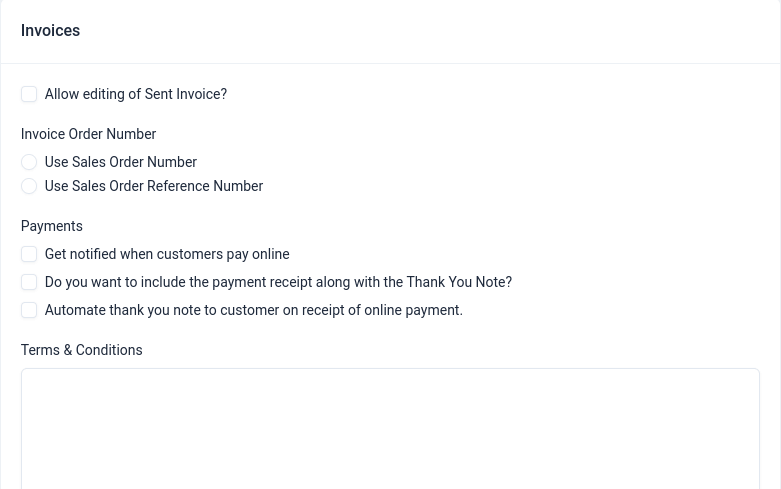
Invoices
Here you can find settings related to invoices in your organization,you can customize them by choosing your preferences.
Credit Notes
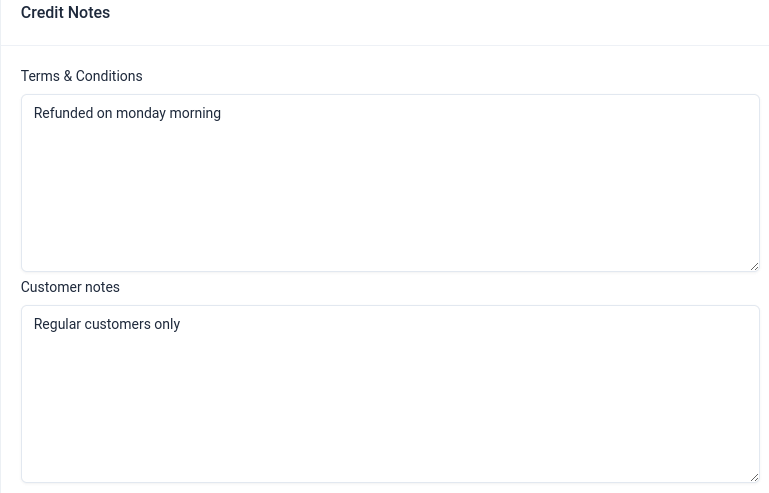
Here you can find settings related to credit notes in your organization,you can customize them by choosing your preferences.