
Appearance
Payments Made
In Payments Made, you may track and apply any payments you've made to your vendors to the different bills you still haven't paid. Additionally, you have access to the invoices' previously recorded payments.
Creating a Payment Made
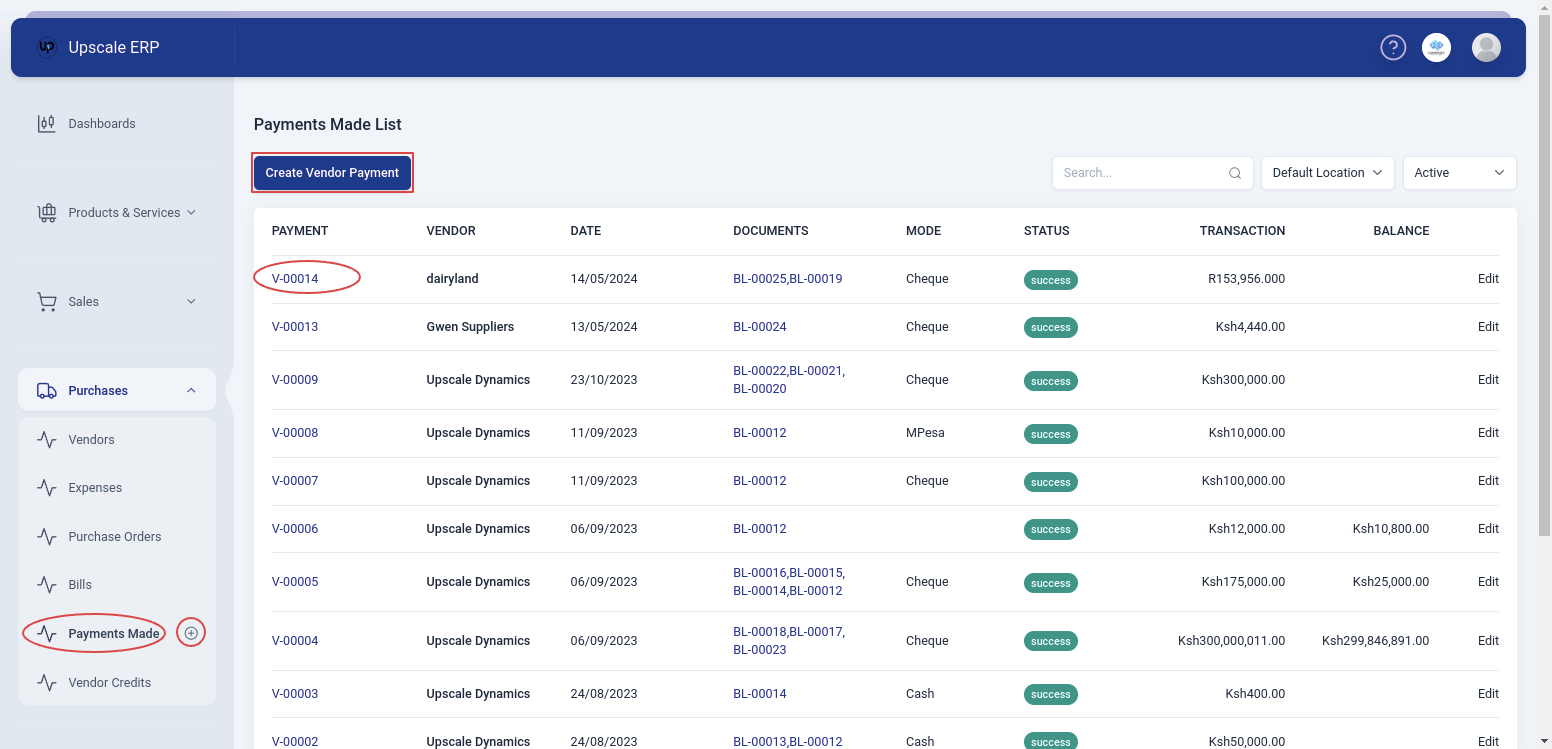
To create a vendor payment,
Go to the Purchases module on the sidebar,and click on 'Payments Made' section.
Click on the 'Create Vendor Payment' button on the top-left of the Payments Made List page,or click the 'New' button found on the payment details page or click the plus (+) next to 'Payments Made' on the sidebar.
Select the vendor,and fill in all the other details related to the payment.The amount could either be paid in full or a small portion of it depending.
At the bottom, a table with all the unpaid bills will be displayed,and a user can also choose to distribute amount among the unpaid bills using the 'Distribute Amount' option.
Once done,click on 'save'.
Viewing a Payment Made
To view a vendor payment,click on the payment # of a any payment on the Payments made list page.
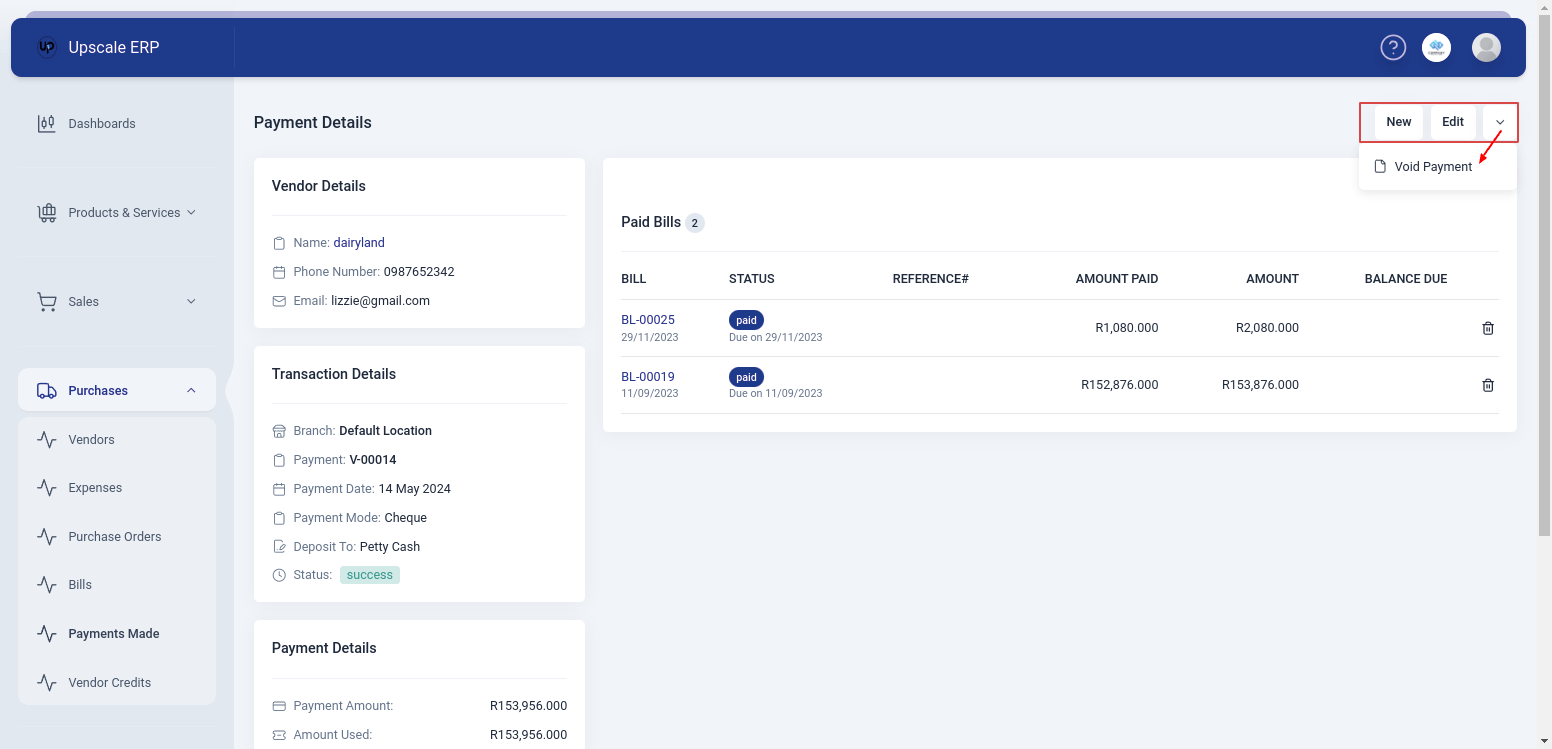
The view page has a few sections that include:
- The Vendor Details section
Contains vendor contact information.
- The Paid Bills table
Displays details about the bills that the payment has been applied to.
- The Transaction Details
It contains the following fields:
| Field Name | Description |
|---|---|
| Branch | Branch in which the payment was made. |
| Payment | This is the payment # that is automatically generated. |
| Reference No | Unique identification number assigned to the payment in the system. |
| Payment Date | Date that payment was made. |
| Payment Mode | Method in which the payment is being made.For example, Mpesa, Cheque, Credit, Bank Transfer, etc. |
| Deposit To | Account in which the payment is to be deposited to. |
| Status | Could be success,failed,pending or void. |
- Payment Details
Displays the Payment Amount,Amount Used and Balance Due.
The View Page Features

The view page has a number of features that include:
- Edit Feature
This can be used when the user wants to change details about the vendor payment.
- Apply To Bill
Used to allocate a specific payment to a bill.This feature is only displayed on the view page when there's an outstanding balance to be paid.
- Refund
For example,if there was excess,or some damaged goods ,the refund option is used to return some of the money.The refund option is only displayed on the view page when there's an outstanding balance.
Deleting a Payment Received
To delete a vendor payment, go to the Payments Made view page,select on the downward arrow to the top-right of the page and click void payment ,if sure select ok.