Appearance
Manage Your Organizations
Adding your Organization
After signing in to your Upscale account, you can add your business by creating an organization.Here's how to do it:
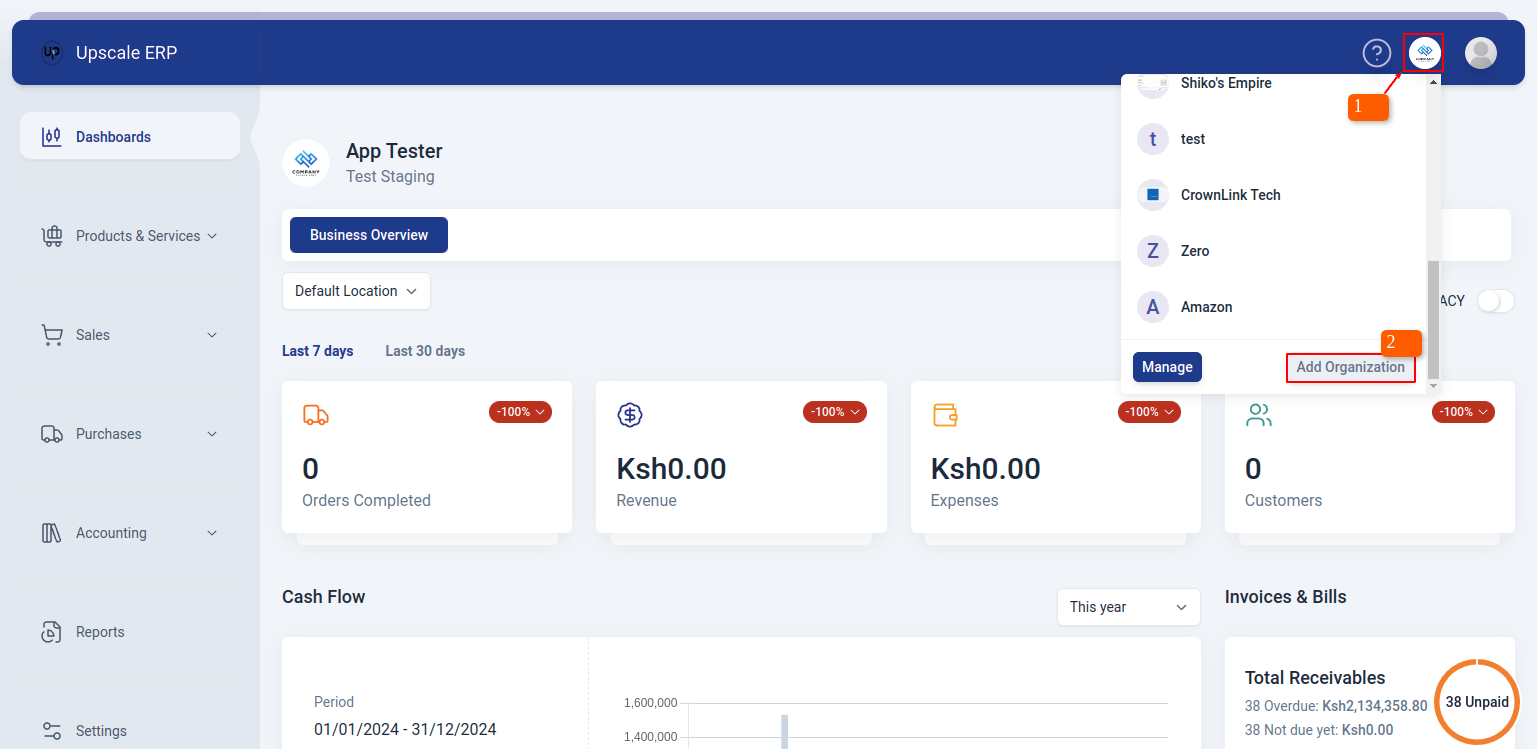
- On the top-right of the page, click on the organizations button, then click on "Add Organization" button on the dropdown
Fill in all the details about your business on the 'new organization' page,like name, base currency, industry category,location,etc.
Once you've completed filling in details on page one, click "Next" to proceed to page two, where you can input the taxes charged in your business, click submit when done.
Once it has created successfully, you can go to inventory to add items,then start selling to customers/create transactions.
Adding Logo to your Organization
To add a logo to your organization,
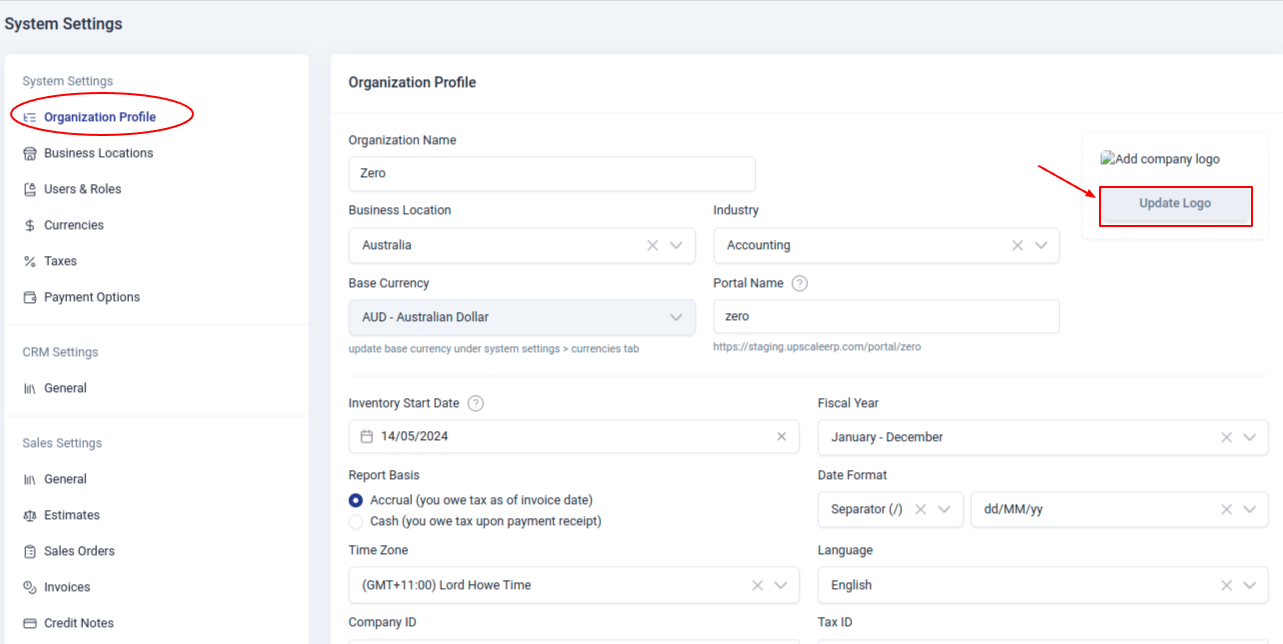
Go to the Settings module and under system settings,you will find 'Organization Profile' section.
Click on 'Update Logo' button on the far right of the organization profile page.
You can choose to add your logo from the web address,files or camera.
Click done to save.
Update Organization details
To change your organization details, simply:
Go to the Settings module and under system settings,you will find 'Organization Profile' section.
You can edit in/out the changes you want and when done,click on "Update Profile" button.
Switching between Organizations
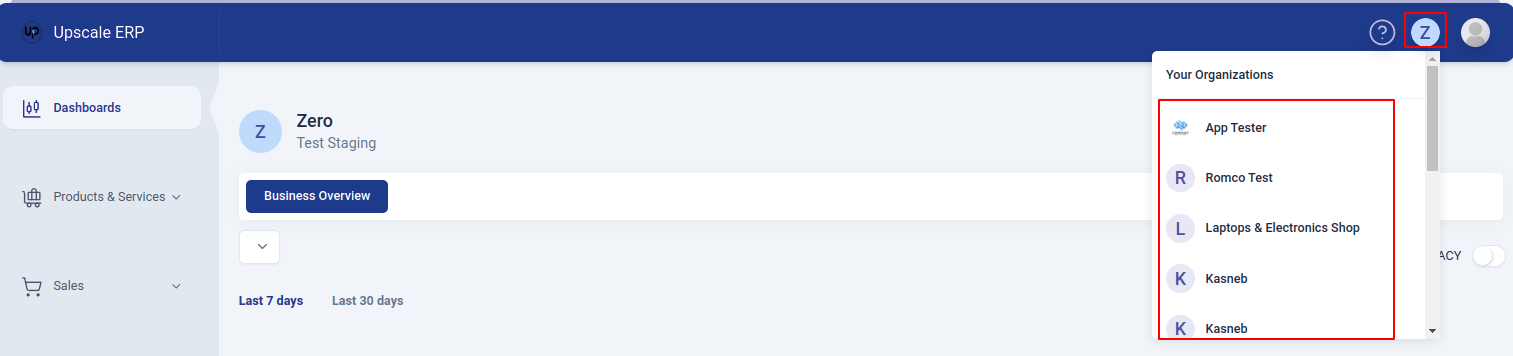
If you have multiple organizations in Upscale ERP,you can switch between these organizations by:
Clicking on the organizations button on the top-right of the page.
A list of your organization will pop-up and you can select the organization you want to switch to.